

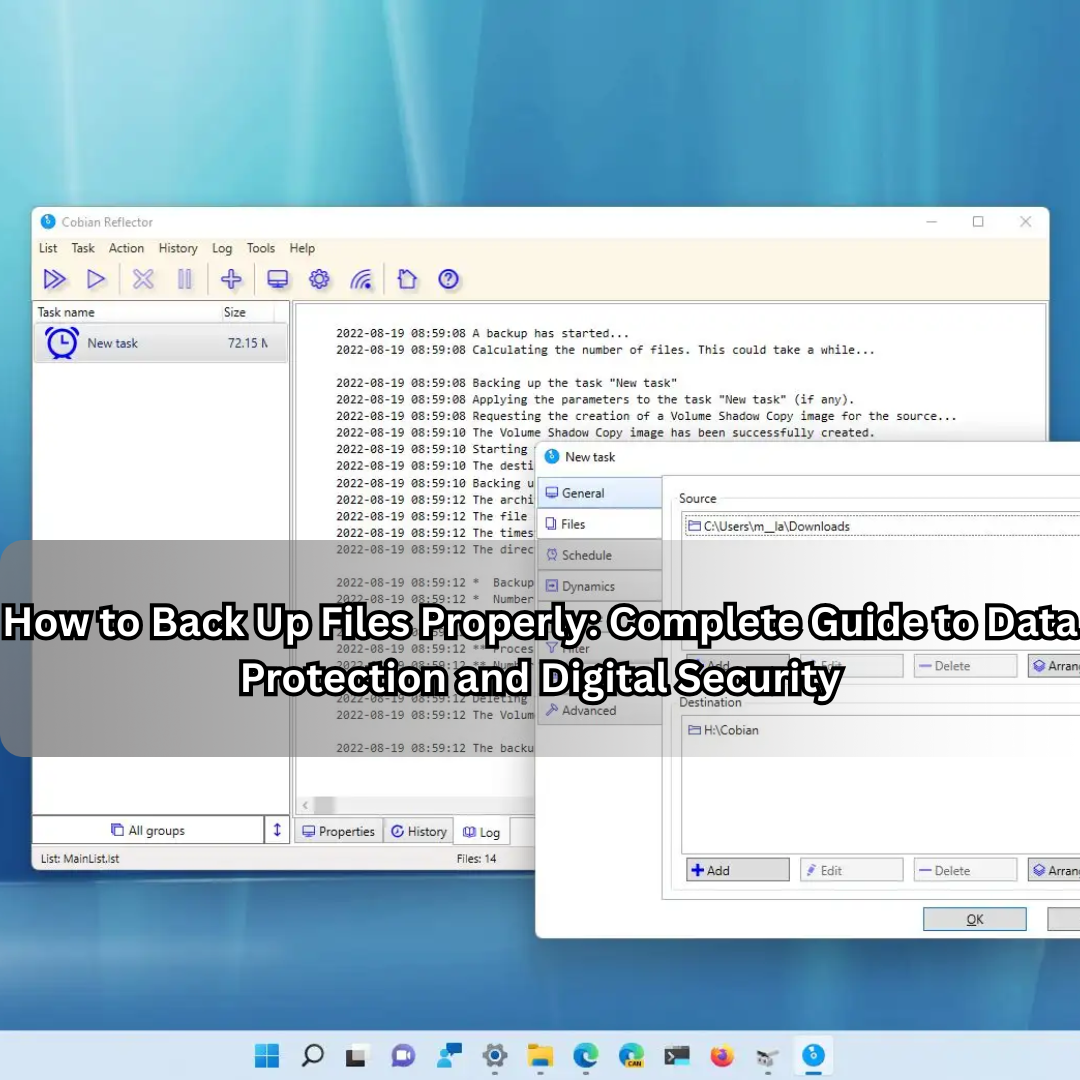
In the digital age, data is one of the most valuable assets we own. From business reports and financial records to family photos and personal memories, our files represent our work, achievements, and memories. Yet, many people still neglect a simple but vital habit — backing up files properly.
Every year, millions of users lose data due to hardware failure, accidental deletion, theft, or malware. In a world increasingly dependent on digital systems, knowing how to back up files properly is no longer optional — it’s essential for security, continuity, and peace of mind.
This comprehensive guide explains what data backup really means, why it matters, and how to create an efficient, safe, and long-term backup strategy for both personal and professional use.
What Does It Mean to Back Up Files?
Backing up files means creating one or more copies of your important data and storing them in a separate location from your primary device. The goal is simple: if your main data source gets lost, damaged, or compromised, you can restore it easily from your backup.
The principle behind it is known as data redundancy — having more than one copy ensures that even if one fails, another remains available.
Common backup mediums include:
- External hard drives
- Cloud storage platforms
- USB drives and SSDs
- Network-attached storage (NAS)
- Backup servers
In essence, a backup is your digital insurance policy.
Why Backing Up Files Is So Important
Every piece of data has potential value — financial, emotional, or operational. Losing it can lead to devastating consequences. Below are the main reasons why proper backups are vital:
1. Protection Against Hardware Failure
Hard drives and storage devices have a limited lifespan. Even the most advanced hardware can fail unexpectedly. Regular backups ensure you can recover data quickly, regardless of the damage.
2. Defense Against Malware and Ransomware
Cyberattacks, especially ransomware, encrypt your files and demand payment to unlock them. With a recent backup, you can restore your system without paying a single penny.
3. Prevention of Human Error
Accidental deletions, formatting mistakes, or overwriting files happen every day. Backups act as your safety net, allowing you to retrieve what’s lost.
4. Protection from Theft or Physical Damage
Devices can be stolen, dropped, or destroyed by fire, water, or natural disasters. Having off-site or cloud backups means your data remains safe even if your equipment doesn’t.
5. Legal and Compliance Requirements
For businesses, data retention laws require keeping certain files for years. Proper backup systems ensure compliance and safeguard against penalties.
6. Peace of Mind
Ultimately, backups bring peace of mind. Knowing your information is safe allows you to focus on productivity without fear of irreversible loss.
Types of Backups and How They Differ
Different backup methods serve different purposes. Understanding these types helps you design the best strategy for your needs.
1. Full Backup
A full backup copies every single file and folder you choose. It’s the most complete form of backup but also takes the most time and storage space.
Best for: Initial backups or small data sets.
2. Incremental Backup
Only new or changed files since the last backup are copied. This method saves time and storage but requires all previous backups for a full restore.
Best for: Daily or frequent backups.
3. Differential Backup
This type backs up all changes made since the last full backup. It takes more space than incremental but restores faster.
Best for: Regular weekly routines with one full and several differential backups.
4. Mirror Backup
Creates an exact real-time copy of selected data. Any deletion or modification reflects instantly in the backup.
Best for: Dynamic environments but risky if accidental deletions occur.
5. Cloud Backup
Stores data remotely on a secure cloud server. Files are encrypted, versioned, and accessible anywhere.
Best for: Remote workers, travelers, and small businesses.
6. Local (Offline) Backup
Uses external hard drives, SSDs, or USBs for physical storage.
Best for: Quick, offline recovery when internet access is unavailable.
Best Practices for Backing Up Files
1. Follow the 3-2-1 Rule
The golden rule of backups:
- 3 copies of your data — one primary and two backups
- 2 different storage types — e.g., local drive and cloud
- 1 copy off-site — away from your home or office
This ensures maximum redundancy and disaster recovery capability.
2. Automate Your Backup Process
Manual backups are prone to forgetfulness. Automation tools or built-in software like Windows Backup, Time Machine (macOS), or third-party platforms ensure continuous protection without human error.
3. Encrypt Sensitive Data
Always encrypt backups containing personal, financial, or business data. Encryption prevents unauthorized access even if the storage device is lost or stolen.
4. Regularly Test Restorations
A backup is only as good as its ability to restore data. Schedule periodic recovery tests to ensure files can actually be retrieved and used.
5. Label and Organize Your Backups
Maintain a clear folder hierarchy, date stamps, and file naming system. Proper organization avoids confusion during emergencies.
6. Keep Software Updated
Backup tools and cloud services release updates for improved security. Outdated software may introduce vulnerabilities or compatibility issues.
7. Use Versioning
Many cloud services like Google Drive, Dropbox, and OneDrive maintain file versions. Enable versioning so that older file versions can be recovered if new ones are corrupted or overwritten.
8. Store Backups in Multiple Locations
Never depend on one location. Combine local storage (e.g., external drive) and cloud storage for comprehensive protection.
9. Monitor Backup Health
Storage devices degrade over time. Regularly check disk health, available space, and backup logs for signs of corruption.
10. Educate Your Team
In corporate environments, data loss often occurs due to human mistakes. Train employees about responsible data handling and backup policies.
How to Back Up Files on Different Systems
Windows
- Use File History or Backup and Restore (Windows 7).
- Choose your destination drive or network location.
- Schedule automatic backups.
- Optionally, use third-party software like Acronis True Image or Macrium Reflect for full-system images.
macOS
- Open Time Machine from System Preferences.
- Select a backup disk (external or network).
- Enable automatic backups.
- Verify regularly that snapshots are being created successfully.
Linux
- Use rsync, Deja Dup, or Timeshift for incremental backups.
- Set cron jobs for automation.
- Store backups in multiple locations (local and remote).
Smartphones
- Android: Use Google One, Drive, or Samsung Cloud.
- iPhone: Use iCloud Backup under Settings → iCloud → Backup.
Cloud Platforms
- Choose reliable services like Google Drive, Microsoft OneDrive, Dropbox, or Amazon S3.
- Set folder sync or scheduled uploads.
- Verify encryption and privacy settings.
Advanced Backup Strategies for Professionals and Businesses
1. Network-Attached Storage (NAS)
A NAS device acts as a centralized backup hub for all computers on a network. Ideal for small offices or home setups, it offers redundancy and 24/7 availability.
2. RAID Systems
RAID (Redundant Array of Independent Disks) configurations like RAID 1 or RAID 5 mirror or distribute data for redundancy. Common in data centers and enterprises.
3. Offsite and Cold Storage
Store critical data on offline drives in secure offsite locations or vaults. This guards against ransomware that targets connected systems.
4. Cloud-Hybrid Backup
Combines on-premises backups with cloud systems for the best of both worlds — local speed and cloud safety.
5. Disaster Recovery Plan
For businesses, a backup is part of a larger disaster recovery plan (DRP) that includes step-by-step restoration, contact lists, and contingency operations.
6. Continuous Data Protection (CDP)
Real-time backup that saves every file change immediately, minimizing data loss windows.
Common Mistakes to Avoid When Backing Up Files
- Relying on a single backup location
- Not verifying backups regularly
- Ignoring backup encryption
- Forgetting to update backup schedules
- Overlooking mobile and cloud accounts
- Using unreliable third-party software
- Keeping external drives always connected (risk of malware infection)
- Backing up corrupted files unknowingly
Avoiding these pitfalls ensures your backup strategy actually protects your data.
The Role of Cloud Storage in Modern Backups
Cloud technology has redefined the backup landscape. It offers automatic syncing, remote access, and secure offsite redundancy. Cloud storage is particularly useful because:
- It eliminates the need for physical devices.
- Files can be accessed anywhere.
- Data is stored in geographically redundant centers.
- Many providers offer version control and file recovery options.
However, privacy and subscription costs remain key considerations. Always review service terms and encryption standards before uploading sensitive information.
How Often Should You Back Up Files?
Backup frequency depends on usage type:
- Personal Users: Weekly or bi-weekly full backups, with daily incremental ones for active projects.
- Businesses: Daily or real-time incremental backups with periodic full backups.
- Developers/Designers: Continuous versioning and automated cloud sync for current projects.
Remember, the more critical your data, the more frequently you should back it up.
The Future of Data Backup
Emerging technologies continue to enhance how data is stored and recovered. Trends include:
- AI-based backup systems that predict data loss risks and optimize storage.
- Blockchain-backed storage ensuring tamper-proof file history.
- Quantum-safe encryption to secure data against next-generation cyber threats.
- Edge backups for IoT and decentralized systems.
These innovations aim to make data protection seamless, intelligent, and fully autonomous.
Conclusion
Backing up your files properly isn’t a luxury — it’s a necessity. The risk of data loss from cyberattacks, accidents, or hardware failure is ever-present. Whether you’re an individual user or a large enterprise, the right backup strategy ensures continuity, security, and control over your digital world.
By following best practices like the 3-2-1 rule, automating backups, using both local and cloud storage, and testing recovery regularly, you can protect your most valuable digital assets for years to come.
Remember: Data can be recreated — but memories, hard work, and trust cannot. Backup today, and stay secure forever.
