

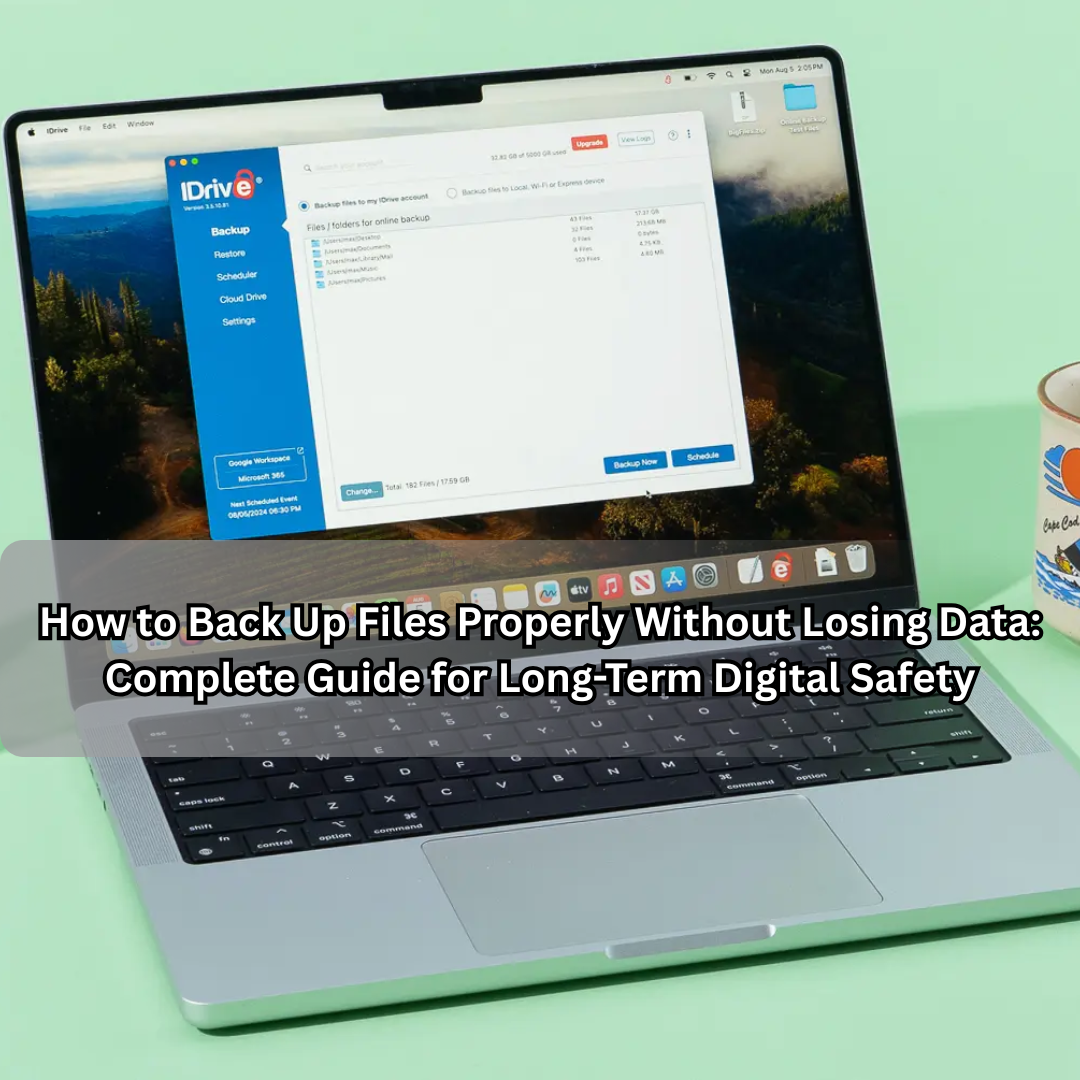
Imagine losing all your work, photos, or records in a single moment — because your laptop crashed, your phone broke, or a virus wiped everything clean. It sounds terrifying, but this happens every day. The good news? It’s completely preventable.
Backing up files isn’t just for IT professionals. Whether you’re a student, business owner, or everyday user, learning how to back up your data properly is one of the most important digital habits you can develop.
This guide explains what data backup means, why it’s essential, and how to back up files correctly without losing data, using reliable methods that suit both individuals and organizations.
What Is Data Backup and Why It Matters
Data backup means creating a copy of your files and storing it separately — so if your device fails, gets stolen, or corrupted, you still have a safe copy of your important data.
Without backups, you risk losing:
- Personal photos, videos, and documents
- Business invoices, records, and client data
- School or college assignments
- System configurations and saved passwords
Think of a backup like an insurance policy for your digital life — you hope you’ll never need it, but it protects you when disaster strikes.
Common Reasons People Lose Data
Understanding how data loss happens helps you prevent it.
- Hardware Failure — Hard drives or SSDs can fail suddenly without warning.
- Accidental Deletion — A mistaken “Delete” or “Format” command can erase everything.
- Malware and Ransomware — Some viruses lock or destroy files.
- Power Surges or System Crashes — Corrupt files or damage storage drives.
- Theft or Damage — Losing a device means losing everything stored on it.
- Cloud Sync Errors — Misconfigured auto-sync can overwrite or delete files.
Most people don’t back up data until they experience a major loss — but by then, it’s often too late.
Golden Rule: The 3-2-1 Backup Strategy
Before diving into tools and methods, remember this universal rule of data protection:
3-2-1 Rule: Keep three copies of your data — one primary and two backups — stored on two different media types, with one copy offsite.
Example:
- Original file → on your laptop
- First backup → on an external hard drive
- Second backup → in the cloud
This ensures you’re safe even if one location fails (like a stolen laptop or corrupted drive).
1. Back Up Files to External Hard Drives
One of the simplest and most reliable backup methods is using an external hard drive or SSD.
Advantages
- Full control over your data.
- No internet required.
- High storage capacity (1TB+).
Steps
- Connect the external drive.
- Copy essential folders (Documents, Pictures, Videos, Desktop).
- Use backup software like Windows Backup, Time Machine (Mac), or tools such as AOMEI Backupper or EaseUS Todo Backup.
- Eject safely and store the drive in a secure location.
Pro Tip:
Use two external drives and rotate them weekly — one for daily use, one stored safely elsewhere.
2. Use Cloud Storage Services
Cloud storage is an online method that saves your files on remote servers accessible anytime, anywhere.
Popular Cloud Backup Options
- Google Drive – Great for personal and document backups.
- Dropbox – Syncs across devices easily.
- Microsoft OneDrive – Integrated with Windows.
- iCloud Drive – Best for Apple users.
- Amazon S3 or Backblaze – For large-scale or business storage.
Steps
- Choose a provider.
- Upload important folders manually or enable auto-sync.
- Verify uploads regularly to ensure files are complete.
Benefits
- Accessible from any device.
- Automated version history (restore previous versions).
- No risk of physical damage.
Warning:
Cloud sync ≠ true backup. If a file is deleted locally and synced, it might also vanish from the cloud. Always use cloud backup, not just syncing.
3. Create System Image Backups
A system image is a full copy of your operating system, apps, and files — like freezing your computer in time.
If your computer crashes, you can restore it exactly as it was.
How to Create a System Image
- Windows:
Go to Control Panel → Backup and Restore → Create a system image. - Mac:
Use Time Machine for full macOS snapshots.
Store the image on an external drive or a separate internal partition.
This method saves both files and software settings, perfect for professionals or businesses.
4. Automate Your Backups
Manual backups are easy to forget — automation keeps your data protected continuously.
Automation Tools
- Windows File History – Auto-backups personal folders hourly or daily.
- Mac Time Machine – Runs automatic hourly and daily backups.
- Third-Party Tools:
- Acronis True Image
- Backblaze Personal Backup
- SyncBackPro
- Carbonite
Tip:
Set automatic backups during off-hours (like 2 AM) to avoid performance slowdown.
5. Use NAS (Network Attached Storage)
NAS is like your own private cloud server at home or office.
It stores files on a central device connected to your Wi-Fi network, accessible by all computers or phones.
Benefits
- Ideal for teams and families.
- Automated local backups.
- Can also back up directly to cloud (hybrid backup).
Best Options
- Synology DiskStation
- QNAP Turbo NAS
Example:
A photographer can store original photos on NAS and keep an extra cloud backup for safety.
6. Back Up Mobile Devices
Smartphones contain irreplaceable data — contacts, chats, photos, notes — that need protection too.
Android
- Use Google One Backup or Drive for photos and data.
- WhatsApp → Settings → Chats → Chat Backup.
iPhone
- Use iCloud Backup under Settings → Apple ID → iCloud → Backup.
- Or connect to a computer and use iTunes or Finder.
Tip:
Run mobile backups at least once a week.
7. Version Control for Important Files
For documents that change frequently (like spreadsheets or projects), use versioning — keeping multiple versions of the same file.
Tools with Version Control
- Google Drive (File → Version history)
- Dropbox (Rewind feature)
- GitHub (for code and team documents)
Version control prevents accidental overwriting or deletion.
8. Encrypt and Protect Backups
A backup is only safe if others can’t access it.
How to Secure Your Backups
- Use encryption tools like BitLocker (Windows) or FileVault (Mac).
- Protect external drives with strong passwords.
- Store physical drives in locked or fireproof boxes.
- Avoid public Wi-Fi when uploading sensitive data.
Note:
Never store passwords for encrypted drives in the same place as the backup itself.
9. Test Your Backups Regularly
A backup is only useful if it works.
Steps to Verify
- Restore a few files to confirm readability.
- Check cloud account logs to ensure uploads are complete.
- Monitor drive health using tools like CrystalDiskInfo.
Do this monthly to guarantee your backup isn’t corrupted or incomplete.
10. Use Multiple Backup Methods Together
The best protection comes from combining methods.
For example:
- Local backup → External SSD
- Remote backup → Cloud service
- Automatic backup → Scheduled weekly job
If one fails, the other keeps your data safe.
This hybrid setup covers every risk — theft, hardware failure, or natural disasters.
11. Label and Organize Your Backups
Poorly organized backups can be as useless as no backup at all.
Tips
- Name folders by date (e.g., “Backup-Nov-2025”).
- Separate work, photos, and system images.
- Maintain a small backup log in a spreadsheet for reference.
It saves time when you need to restore something specific.
12. Keep an Offsite or Cloud Copy
Always store at least one backup offsite — outside your home or office.
Why?
Fire, theft, or natural disasters can destroy local backups.
Cloud platforms, or even a physical drive stored at another location, protect you from such scenarios.
13. Consider Business-Grade Backup Solutions
If you run a business, your backup needs go beyond personal tools.
Enterprise-Level Options
- Veeam Backup & Replication
- Acronis Cyber Protect
- AWS Backup
- Google Cloud Vault
These offer features like automatic failover, incremental backups, and compliance tracking.
14. Understand Incremental vs Full Backups
Full Backup
Copies all data every time — reliable but slow.
Incremental Backup
Copies only changed files since the last backup — faster and smaller.
Pro Tip:
Use a combination — one full backup weekly and incremental backups daily.
15. Backup Scheduling Plan
Create a structured schedule:
| Frequency | Type | Storage | Purpose |
|---|---|---|---|
| Daily | Incremental | Cloud or NAS | Protect frequent changes |
| Weekly | Full | External drive | Restore full system if needed |
| Monthly | Archive | Offsite/cloud | Long-term copy |
Automation ensures you never miss a backup window.
16. Avoid Common Backup Mistakes
- Forgetting to test backups.
- Relying only on cloud syncing (not true backups).
- Storing backups next to original files.
- Using cheap or unverified drives.
- Not encrypting sensitive information.
Avoiding these errors ensures reliability and privacy.
17. Backup for Different Users
For Students
- Store assignments in cloud drives (Google Drive, OneDrive).
- Keep external copy before exams or submissions.
For Professionals
- Back up documents, reports, and email archives weekly.
- Use encrypted USB or SSD for confidential work.
For Creators
- Back up photos, videos, and project files to two drives and one cloud.
18. Long-Term Data Archiving
For important memories or records you’ll keep for years (tax files, legal docs, family photos):
- Store in non-compressed formats (like PNG, PDF/A).
- Keep at least two separate storage types.
- Replace physical drives every 3–5 years.
This prevents data rot or file corruption over time.
19. Restoring Lost Files
When the time comes to recover data:
- Locate your latest backup.
- Use your backup software’s “Restore” feature.
- Select files or folders and confirm restore path.
If restoring from a system image, boot via recovery mode to reinstall the entire system.
20. Make Data Backup a Habit
The key to never losing data isn’t a one-time setup — it’s routine.
Schedule monthly checks, keep devices clean, and regularly update passwords.
Once backing up becomes second nature, you’ll never worry about unexpected loss again.
Conclusion
Data loss can happen to anyone — but with proper backups, it never has to be permanent.
Whether you use an external drive, cloud storage, or both, the goal is the same: keep your information safe, secure, and easily restorable.
By following structured methods — like the 3-2-1 rule, automated schedules, encryption, and testing — you build a bulletproof digital safety net.
Your files represent your time, effort, and memories.
Protect them wisely — once lost, some things can never be replaced.
